
Show or hide audio player
In this article
An audio player is shown by default on all translations for languages that support text-to-speech. This article explains how to show or hide the audio player.
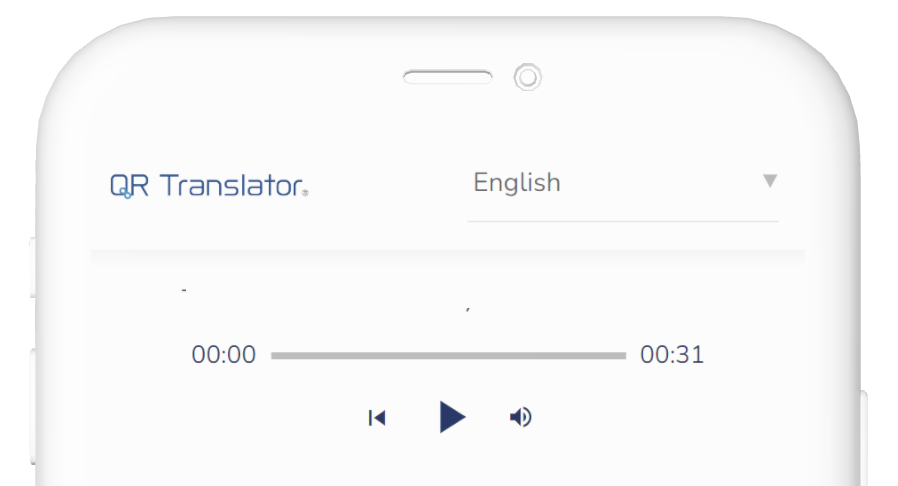
How to show or hide the audio player
- All audio settings are managed from the QR codes Code Overview panel. To access the Code Overview panel, open the Dashboard, find the code you want to edit and click the icon.
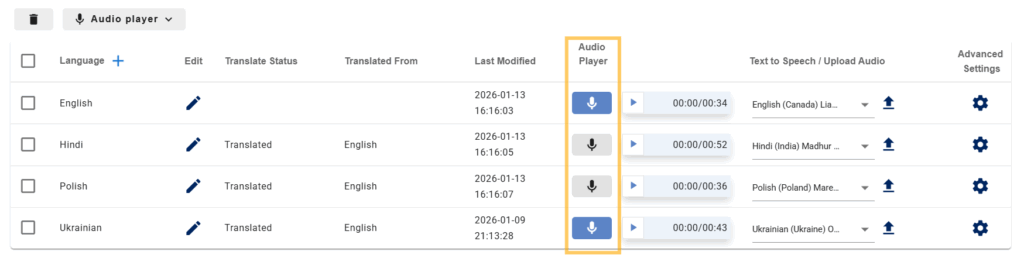
- Under Audio Player, toggle the button.
- Colored background: The audio player is visible.
- Grey background: The audio player is hidden.
- To publish the changes, click Publish to QR code .
How to show or hide the audio player for multiple languages
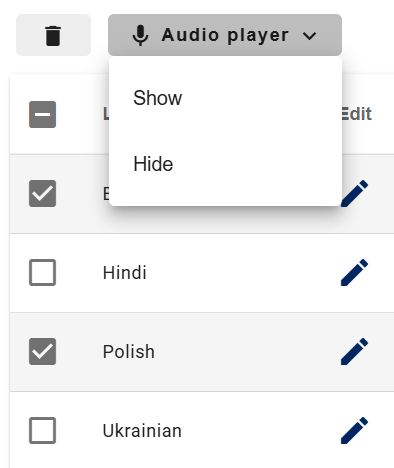
- Select the languages you want to update.
- Click Audio player ➡ Show / Hide.
- To publish the changes, click Publish to QR code .
Troubleshooting
Text-to-Speech does not play
- Make sure the audio player is enabled (toggle has a colored background).
- Check that the selected language supports text-to-speech.
Audio player shows an error
- Text-to-speech audio is limited to a maximum length of 10 minutes.
- If your content is longer, only the first 10 minutes will be converted to audio.
Was this helpful?
YesNo