
Member permissions
In this article
This article explains how to manage project permissions and what actions each permission allows.
Before you begin
The project owner is the user who created the project.
Regardless of a user’s project permissions, only the project owner can:
- Invite new members
- Manage payments and subscriptions
- Create new custom languages
If you are working on QR codes in a project you were invited to, you can only select custom languages defined by the project owner. Members cannot create or use their own custom languages within that project.
ℹ️ Project ownership cannot be transferred to another user.
How to change a member’s project permissions
- Open the Project Members dialog:
a: Open the project, and click the button.
or
b: In the top navigation, click the button to open the Projects overview. Locate the project, select , then click members. - Use the on/off buttons next to each member to update their project permissions.
For Edit Languages, click the icon to select specific languages.
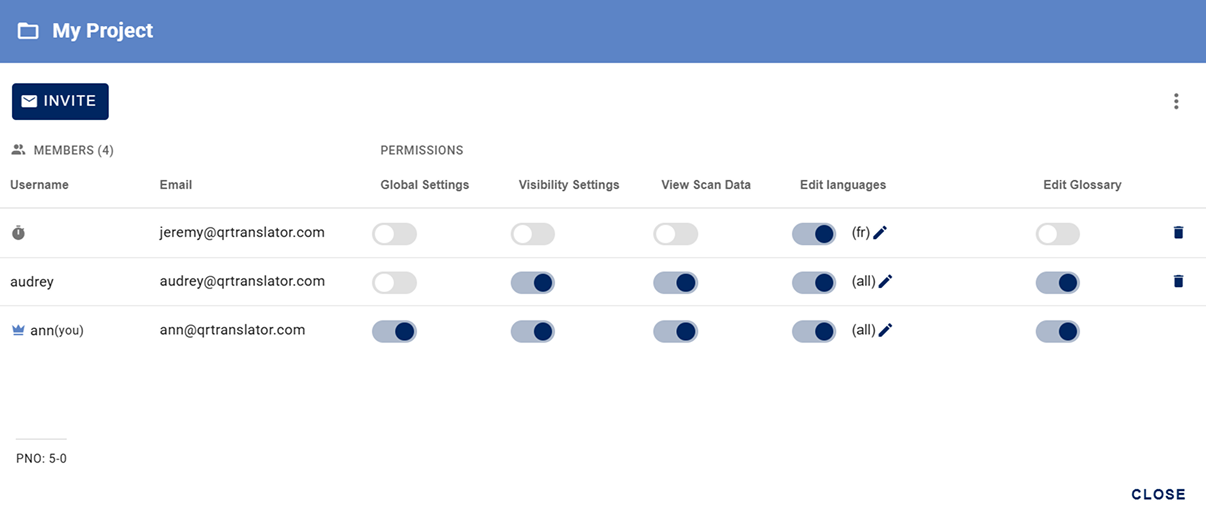
Project permissions
Any member can view and download QR codes regardless of permissions.
Global settings
- Create QR codes – Create new QR codes in the project
- Delete QR codes – Delete existing QR codes
- Publish changes – Publish updates to the public QR code
- Redirect settings – Control QR code redirects (redirecting a QR code to another URL or QR code).
- Edit the following settings:
- Turn on / off “Track scan data” for individual QR codes.
- Update a QR code’s name and notes.
Visibility settings
- Public / private – Make QR codes public or private
View scan data
- View insights – See and export scan data
Edit languages
- Edit content – Do the following for selected languages:
- Edit the window title and content
- Add or remove translations
- Re-translate content
- Show or hide the audio player
- Select Text-to-Speech voice types
- Upload and delete mp3 files
- Upload and manage SSML files
- Turn on / off “This page is a machine translation” message on translations
- ℹ️ This permission allows editing, but publishing is a separate step and requires Global settings.
Edit Glossary
- Edit glossary – Edit glossary terms for all languages in the project.
ℹ️ This applies to all languages, even if Edit languages is limited to specific languages.
Was this helpful?
YesNo