
Editor toolbar overview
In this article
This page explains each editor button from left to right, top to bottom.
Editing & Navigation
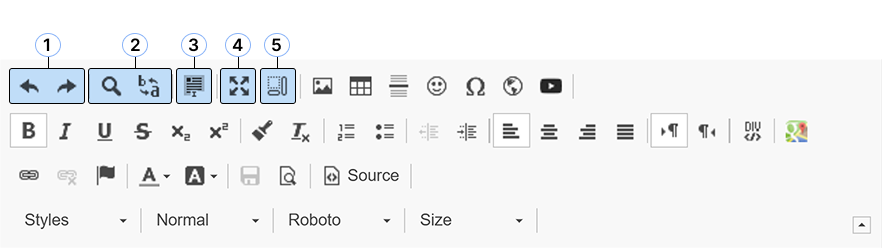
- Undo / Redo
Undo: Reverts your most recent change.
Redo: Restores the last change you undid. - Find / Find and replace
Find: Searches for a word or phrase within your content.
Find and replace: Searches for text and replaces it with new text automatically. - Select all
Selects all content in the editor at once. - Full screen
Expands the editor to fill the entire screen for easier editing. - Show blocks
Displays visual outlines around paragraphs and content blocks to help with layout and spacing.
Insert content
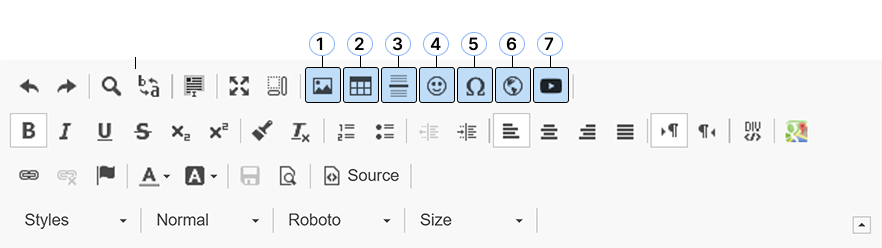
- Image
Insert an image into your content. - Table
Insert a table with rows and columns. - Separator
Insert a horizontal line to visually separate content. - Smiley
Insert an emoji into your text. - Special character
Insert symbols such as ©, ®, or mathematical characters. - iFrame
Embed external content such as maps or interactive elements. - YouTube
Embed a YouTube video into your content.
Text formatting
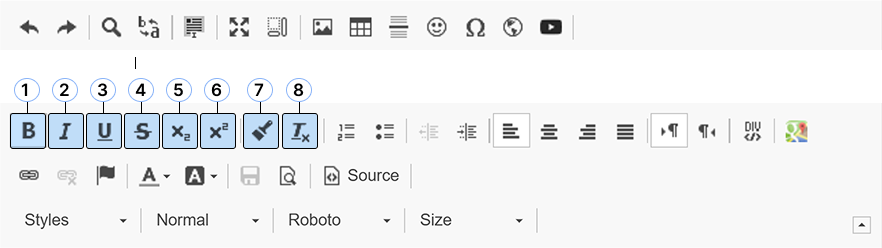
- Bold
Makes the selected text bold to emphasize it. - Italic
Slants the selected text for gentle emphasis. - Underline
Adds a line under the selected text. - Strikethrough
Draws a line through text to indicate it is removed or no longer valid. - Subscript
Places text slightly below the normal line (e.g. chemical formulas). - Superscript
Places text slightly above the normal line (e.g. footnotes or exponents). - Copy formatting
Copies the formatting from one part of the text and applies it to another. - Remove formatting
Removes all formatting from the selected text and resets it to plain text.
Lists & Alignment
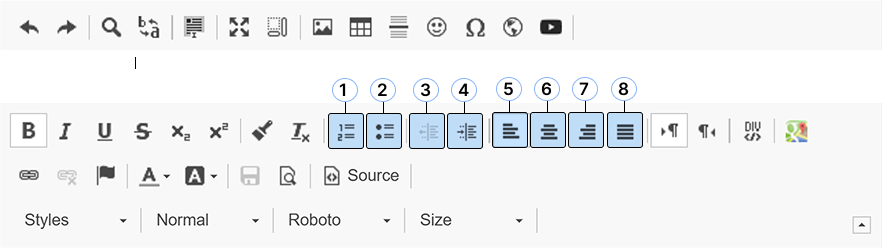
- Numbered list
Creates a numbered list for steps or ordered items. - Bulleted list
Creates a bulleted list for unordered items. - Decrease indent
Moves the selected text closer to the left margin. - Increase indent
Moves the selected text further to the right. - Align left
Aligns the text to the left margin. - Align center
Centers the selected text horizontally. - Align right
Aligns the text to the right margin. - Justify
Aligns text evenly to both left and right margins.
Text Direction & Layout
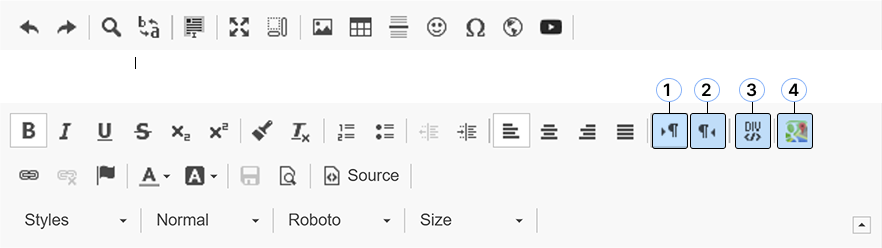
- Text direction: left to right
Sets the text flow from left to right (default for most languages). - Text direction: right to left
Sets the text flow from right to left for languages such as Arabic or Hebrew. - Insert div
Inserts a container block that can be used to group or style content. - Google Map
Show a location on the map with Google Maps.
Links & Embeds
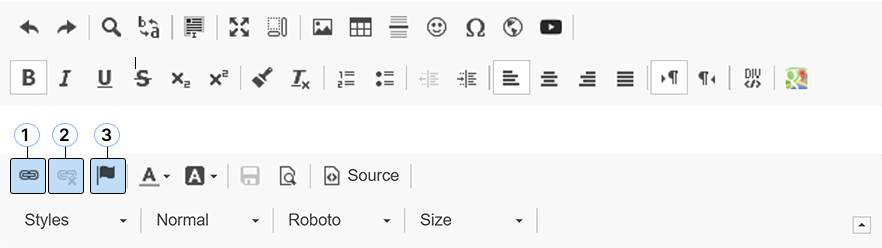
- Link
Adds a clickable link to the selected text. - Unlink
Removes a link from the selected text. - Anchor
Creates a reference point that can be linked to within the same page.
Colors & Highlighting
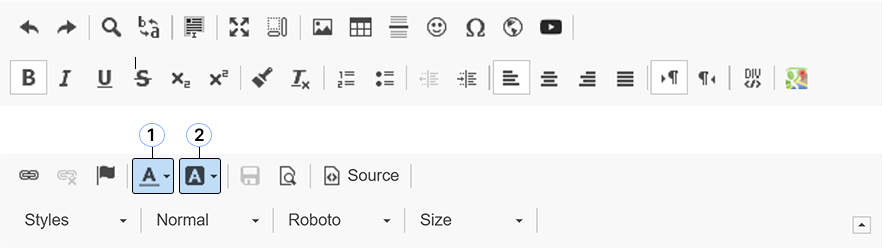
- Text color
Changes the color of the selected text. - Text background color
Adds a background color behind the selected text.
Preview & Advanced Editing
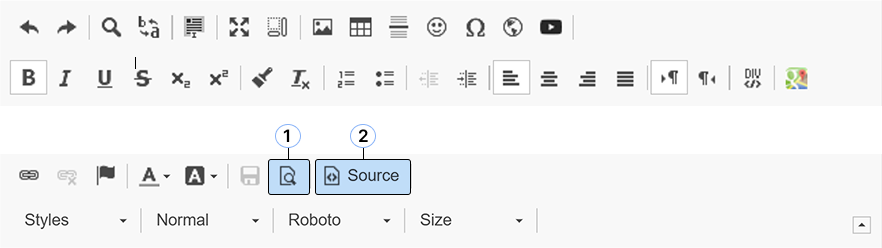
- Preview
Displays a preview of how the content will appear when published. - Source
Switches to HTML source view for advanced editing.
Styles & Text Appearance
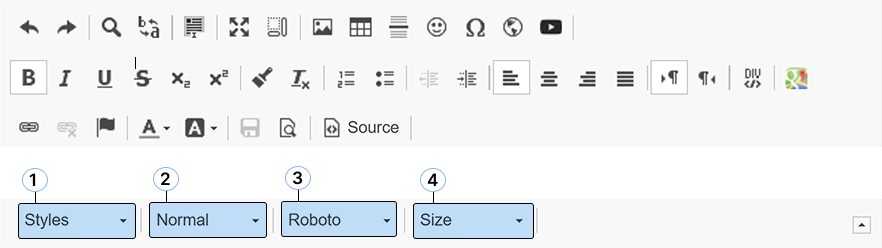
- Styles
Applies predefined style presets to the selected text. - Paragraph format
Changes the text type, such as paragraph or heading. - Font family
Changes the font used for the selected text. - Font size
Changes the size of the selected text.
Was this helpful?
YesNo