
Change login method
In this article
This article explains how to change the login method for your QR Translator account. QR Translator supports two login methods:
- Username and password
- Google account (social login)
You can switch between these methods by linking or unlinking a Google account.
Before you begin
Some login features apply only to specific login methods.
Make sure the steps in this article match how you normally sign in.
Switch to Google sign-in
By linking a Google account, you can sign in to QR Translator using Google instead of a username and password. This allows faster login and removes the need to manage separate login credentials.
Link your Google account
- Log in with your username and password.
- Open the main menu (navigation icon left from the QR Translator logo), click My Account.
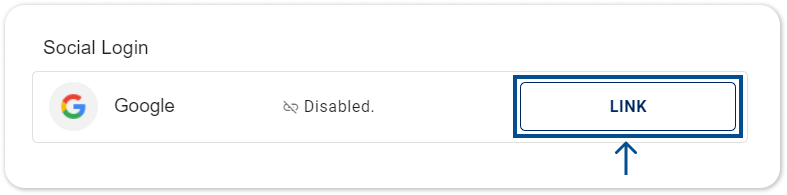
- Find the Social Login section.
- Click the LINK button.
- Follow the steps on the screen.
Switch to username and password
If your account is linked to Google and you want to switch to a username and password instead, you can unlink your Google account at any time.
Unlink your Google account and set up a username and password.
- Log in by clicking the Sign in with Google.
- Go to My Account
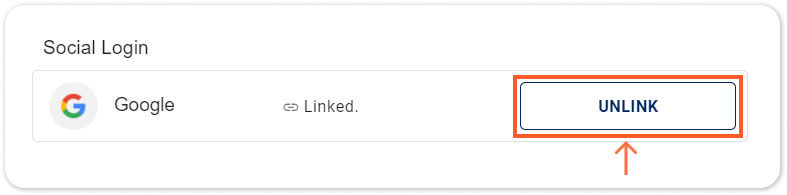
- Find the Social Login section.
- Click UNLINK button next to the Google icon.
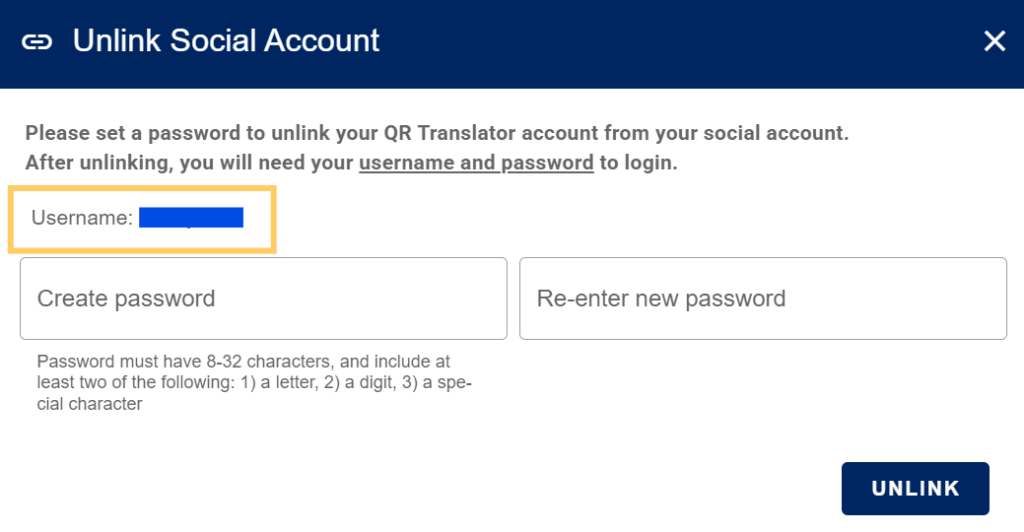
- ⚠️ Important: A username will be created automatically.
Make sure to note down your username, as you’ll need it for future logins.
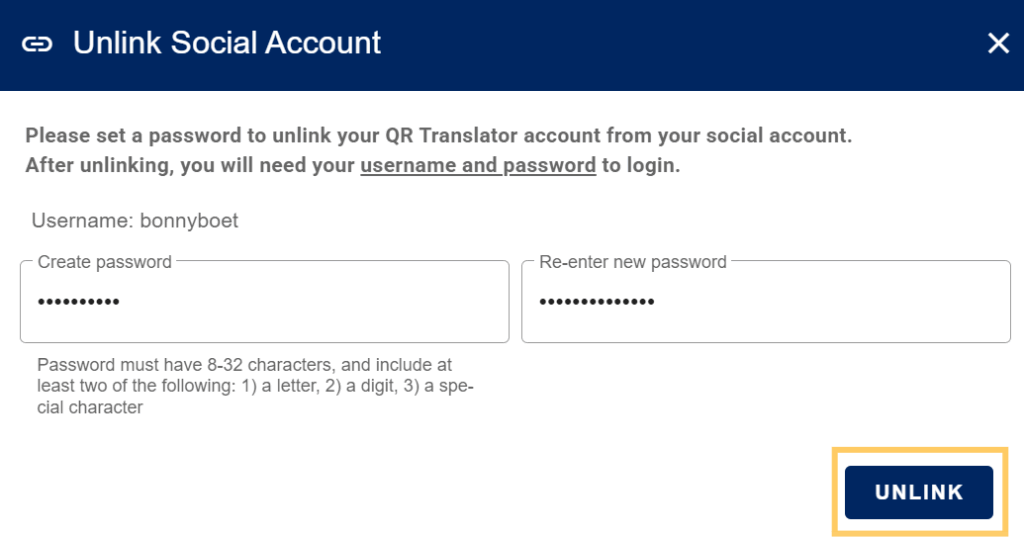
- Enter a new password, and click unlink.
Was this helpful?
YesNo