
Redirect
In this article
This article explains how to use the Redirect setting in QR Translator to send visitors to another destination when they scan a QR code.
Before you begin
The Redirect setting allows a QR code to send visitors to a different destination when scanned.
⚠️ Redirects are only available for activated QR codes, including codes on a trial or with an active subscription.
Instead of opening the QR Translator page, the QR code can redirect visitors to another location.
You can redirect visitors:
- To another QR Translator QR code
- To another website
You can also redirect only specific languages to another location.
For example:
- Keep English-speaking users on the QR Translator page
- Send French-speaking users to your website homepage
Use case examples
- Temporary promotions or events
Temporarily point a QR code to a special promotion page or event information. - Seasonal menus
Temporarily point a QR code to another QR code’s content (for example, a seasonal menu) without reprinting the QR code. - Redirecting certain languages to your website
If your website already provides some languages, you can redirect those visitors to your website while using QR Translator for other languages.
How to set up redirect
- On the Dashboard, find the QR code you want to configure.
- Click the Open the Redirect dialog.
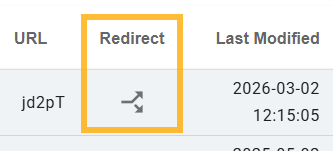
- Choose whether the redirect applies to All languages or Only selected languages.
- Select the destination:
- URL (website), or
- Another QR code
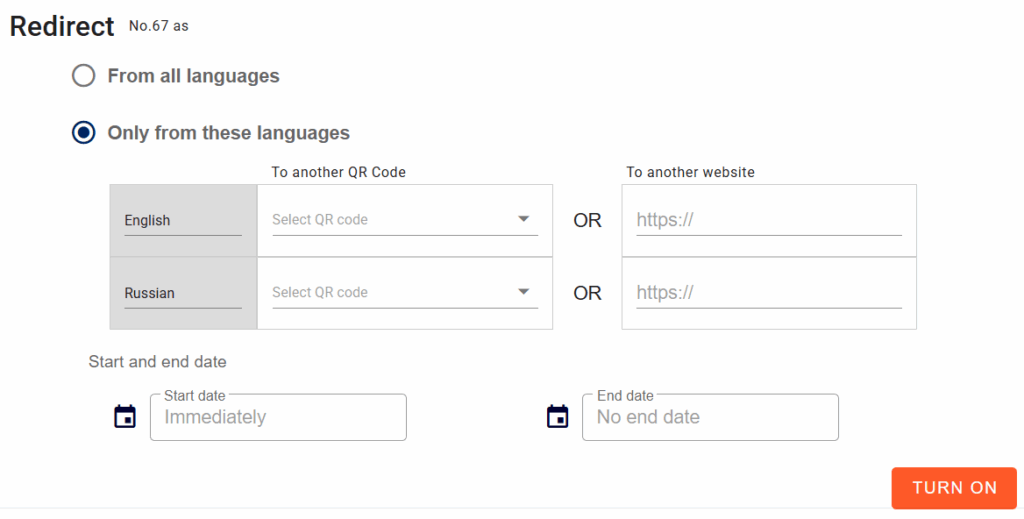
- (Optional) Set a start date and end date set a scheduled redirect.
- Click Turn on.
How to turn off redirect
- On the dashboard, find the QR code you want to configure.
- Click the Open the Redirect dialog.
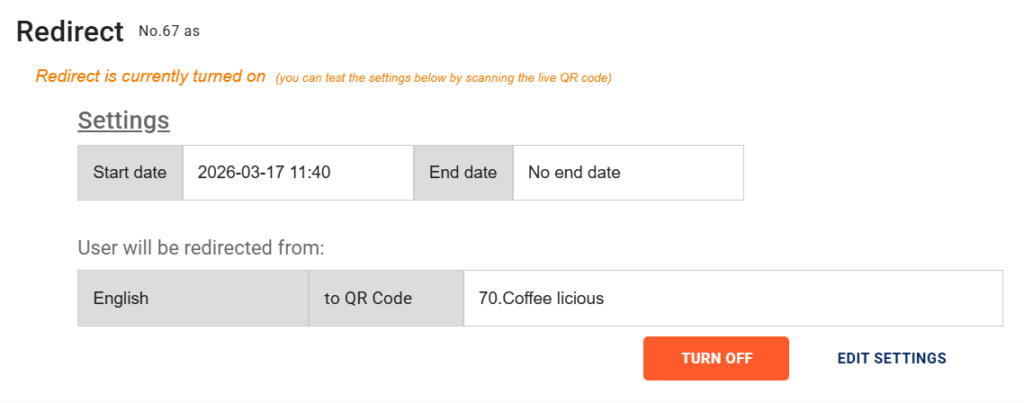
- Click TURN OFF.
How to test the redirect
Redirects do not work in the QR code preview in the dashboard. To confirm that the redirect behaves as expected, you must either scan the QR code or open the QR code URL directly.
ℹ️ Redirects are only available for activated QR codes (trial or subscription).
- Open the QR code you want to test.

- Option 1: Scan the QR code using your smartphone camera or a QR scanner.
- Option 2: Copy the QR code URL and open it in a browser.

Testing language-based redirects
If you configured redirects for specific languages, you may need to change your device’s language settings to test different scenarios.
For example:
- Set your phone / browser language to French and scan the QR code.
- Set your phone / browser language to English and test again.
ℹ️ If you previously scanned the QR code, clear your browser cookies before testing again.