
Custom Languages
In this article
This article explains what custom languages are, why you might need them, and how to add predefined languages or create your own custom language variants.
What are custom languages?
By default, 43 languages are available as translation options. If you want to use additional languages, you can customise which languages are shown on by configuring Custom Languages.
You can select from the remaining predefined languages or create your own custom language to suit your needs.
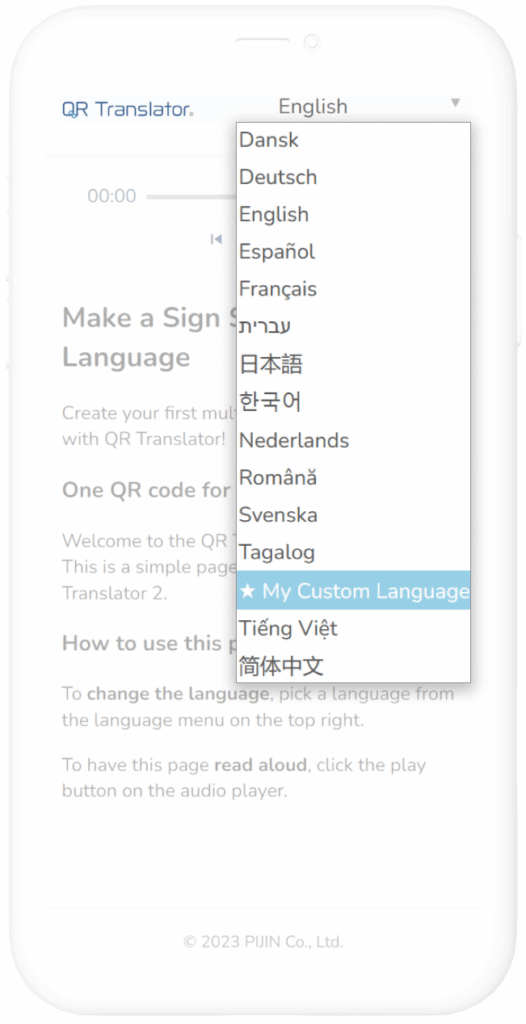
Ways to create custom languages
There are two ways to add custom languages:
- Add a predefined language from the supported list
- Create your own custom language (name it yourself)
1. Add a predefined language from the supported list
If the language you want is already supported by QR Translator but not shown by default, you can enable it from a predefined list.
These languages are ready to use out of the box, with machine translation, browser language detection, and Text-to-Speech (if available) already configured.
This is the easiest and recommended option when available.
To add languages from the predefined list:
- Open the Dashboard.
- Click the Custom Languages button to open the Custom Languages dialog.
You can also access this dialog from the Add / Redo Translations panel on a QR code’s editing screen.

- Under Add from list, select the languages you want to enable.
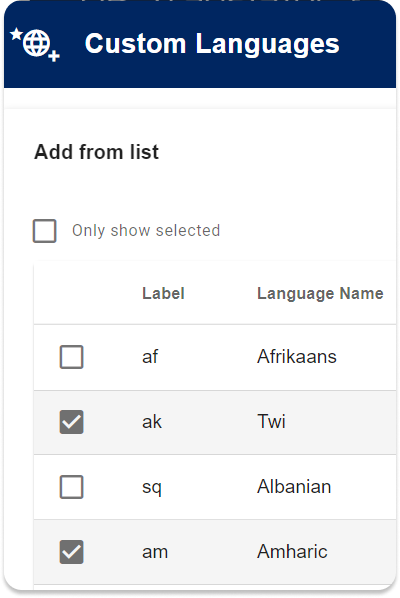
- Close the dialog. The selected languages will now be available, and will be marked with one star.
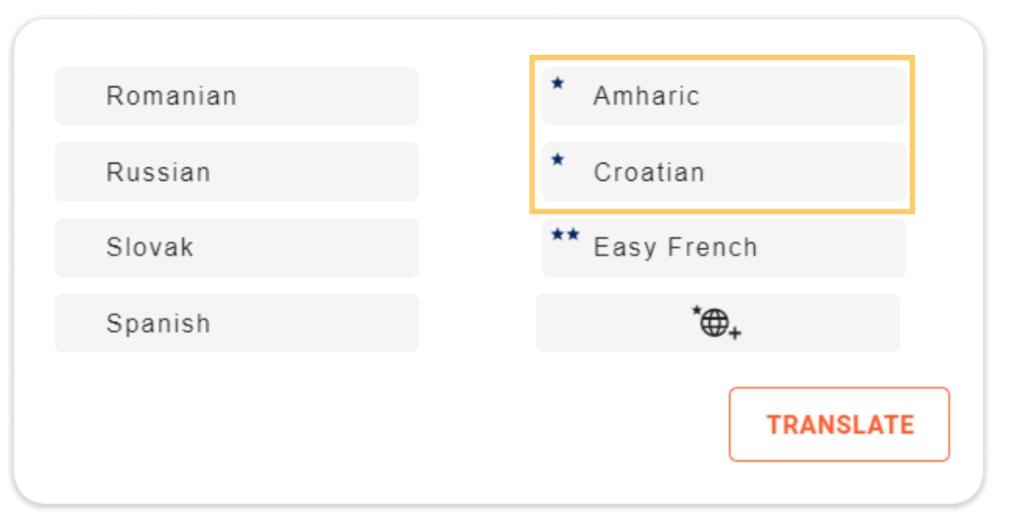
ℹ️ Default languages (shown in blue) cannot be disabled.
2. Create your own custom language (name it yourself)
If you need more control, you can define a custom language with a name of your choice. This is useful when you want to distinguish between different variants or versions of the same language.
Typical use cases include:
- Regional language variants
For example:- French (France) and French (Quebec)
- Portuguese (Portugal) and Portuguese (Brazil)
- Audience-specific content
- A Simplified Language version for readers with limited language proficiency
- A Children’s version with shorter text and simpler wording
- A Technical version for specialists
- Content-specific versions
- Separate pages for text-only content and audio-guide content
- Different translations for indoor signage vs. printed materials
Custom languages make it possible to offer multiple versions of the same language, each optimised for a specific audience or purpose.
To create your own custom language:
- Open the Dashboard.
- Click the Custom Languages button to open the Custom Languages dialog.
You can also access this dialog from the Add / Redo Translations panel on a QR code’s editing screen.
- Click Define your own customer languages:
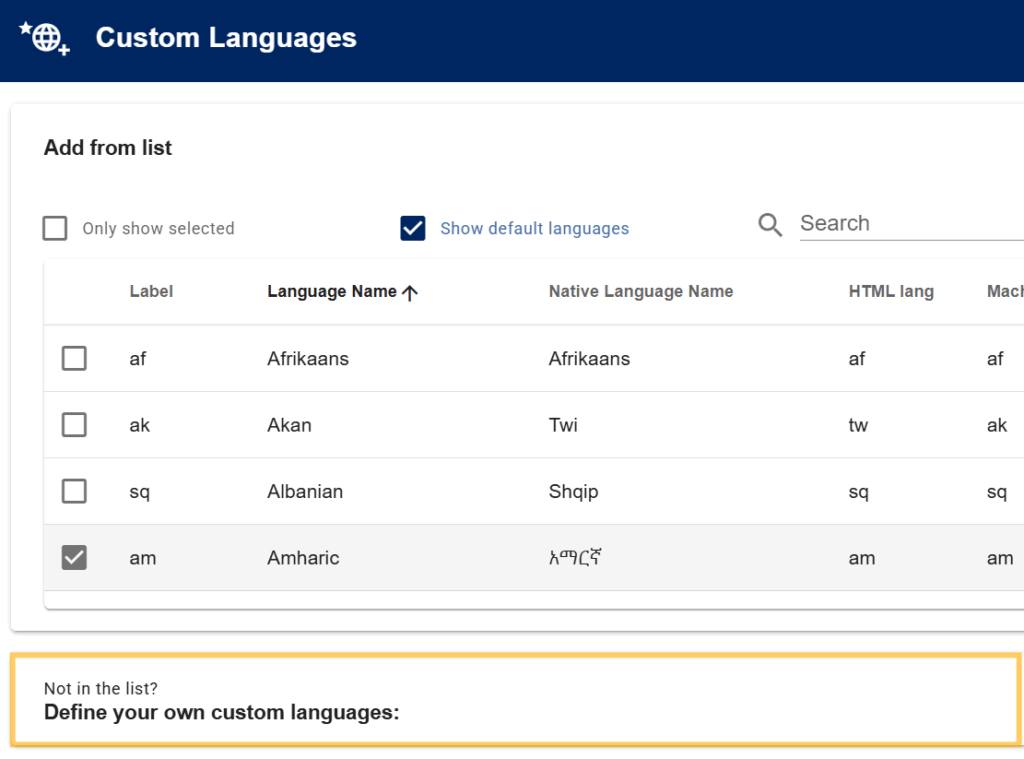
- To add a custom language, fill out the following fields:
- Label
Enter an abbreviation (max. 5 characters) which will serve as an identifier for the language on the QR code list on the dashboard. This label is visible only to you. - Language Name
Enter the name of the language in your preferred language. - Native Language Name
Enter the language name as it is known among its speakers. Visitors will see this in the language selection menu on the QR code. - (Optional) HTML lang
This language code is used by browsers to recognise the language of the page. If the specified language corresponds to the user’s browser language settings, QR Translator will automatically display the appropriate translation. To find out the appropriate language code, find the language’s subtag on IANA’s Language Subtag Registry. - (Optional) Machine translation
Choose the machine translation language. If this field is left blank, translating to the new custom language will generate a blank canvas where you can insert your translation. - (Optional) Text-to-Speech
Choose the language you want your text to be read aloud in. - Click + Add to save.
- Label

- Your custom language is now ready to use.
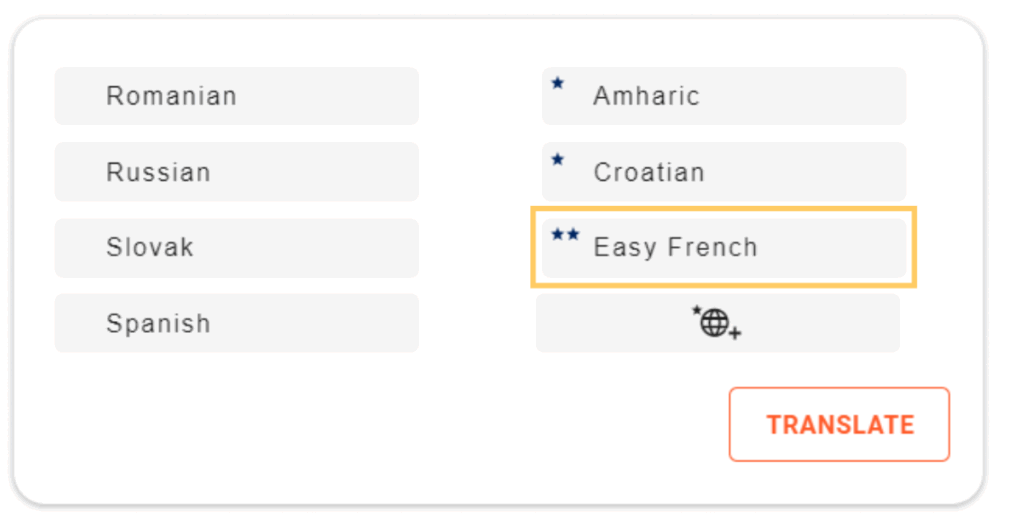
Fully custom languages are marked with two stars.
How to delete a custom language
⚠️ Important: You can only delete custom languages that are not currently in use.
If the language is used in any QR code, you must delete those translations first.
- Open the Dashboard.
- Click the Custom Languages button to open the Custom Languages dialog.
You can also access this dialog from the Add / Redo Translations panel on a QR code’s editing screen.
- Find the custom language you want to remove.
- For predefined languages
Uncheck the checkbox to remove the language. - For fully custom languages
Click Define your own custom languages, find the language, and click the icon to delete it.
- For predefined languages