
Manage translations
In this article
This article explains how to manage existing translations. You will learn where to find your QR code’s translations, how to add new languages, regenerate existing translations, and permanently delete translations when they are no longer needed.
Where to find your translations
Translations are managed from the QR codes Code Overview panel. To access the Code Overview panel, open the Dashboard, find the code you want to edit and click the icon.
The Code Overview panel
- Language
The English name of the language.
ℹ️ In the language menu shown to your audience, the language name is displayed in its localised form. - Edit
Open the editor for this translation - Translate Status
- Translating: The translation is currently being processed.
- Translated: The translation has been completed successfully.
- Error: A problem occurred during the translation process and the translation was not completed successfully.
In this case, try translating again or check the length of the source language.
- Translated From
Shows from which language this language was last translated. - Last Modified
When the translation (including audio settings) was last updated. - Audio Player
Click the button to show or hide audio player. - Text-to-Speech / Upload Audio
Choose a Text-to-Speech voice or upload your own audio. - Advanced Settings
- Upload SSML files
- Choose whether or not to show a localised message informing readers that content is machine translated.
All changes to a QR code, including adding, redoing, or deleting translations, are saved as a draft and only take effect on the live QR code after you publish them. To publish changes, click Publish to QR code .
How to add or regenerate translations
- Open the Code Overview panel to see an overview of your QR code’s translations.
- Find the button next to Languages.
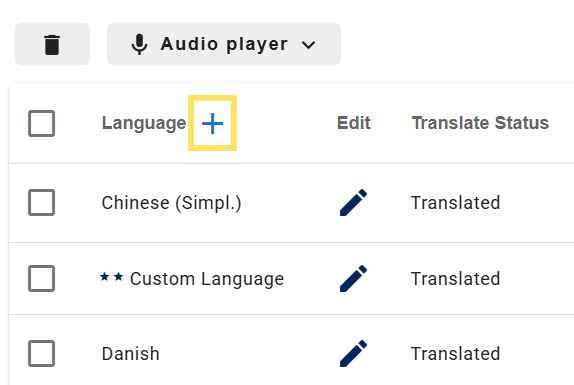
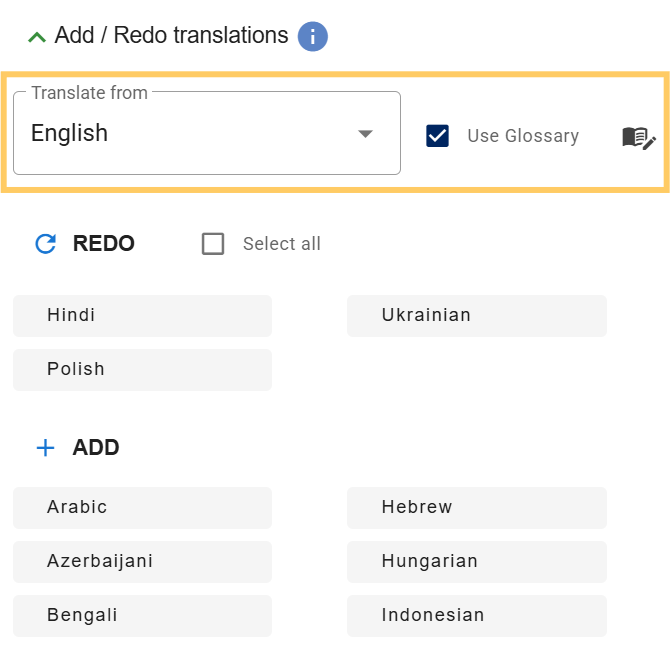
- Choose how you want to generate translations:
- Translate from
Select the language to use as the source text. - Use glossary
Appears if your glossary contains at least one term.
When enabled, glossary terms are applied during translation.
- Translate from
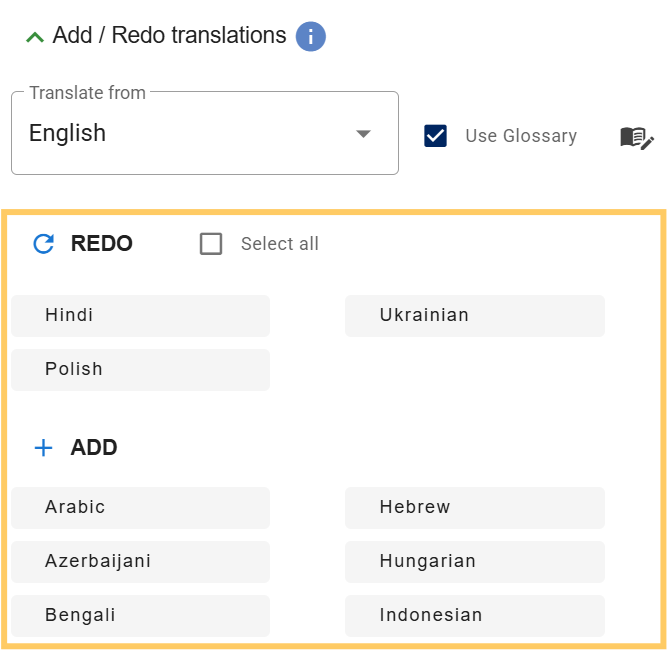
- Select the languages:
- Redo
Choose existing languages to regenerate their translations using the selected source language.
⚠️ Redoing a translation replaces the existing text with a newly generated translation and removes any manual edits. - Add
Choose the languages you want to add as new translations.
- Redo
- Click translate to generate the translations. All changes to a QR code are saved as a draft, allowing you to review translations and audio before publishing them live.
- Click Publish to QR code to publish the new translations.
ℹ️ Custom language availability
If you are working on QR codes in a project you were invited to, you can only select custom languages defined by the project owner. Members cannot create or use their own custom languages within that project.
How to edit translations
- Locate the language you want to edit in the Code Overview.
- Click the icon to open the editor.
- Make your changes. How to use the text editor.
- Click save to draft to save your changes to a draft or click publish to QR code to publish the changes immediately.
ℹ️Changes you make to a translation apply only to that language. To apply the same changes to other languages, you’ll need to redo the translations.
How to delete translations
- Open the Code Overview panel to see an overview of your QR code’s translations.
- Select the checkbox next to the languages you want to delete.
- Click the icon.
⚠️ Deleting translations is irreversible. Once deleted, the translation content cannot be recovered and will need to be translated again if required. - Click Publish to QR code to apply the deletion to the live QR code.
Troubleshooting
Translation Status shows “Error”
If the number of characters (including markup) of your source language exceeds the recommended limit, the translation may fail.
- Open the content editor of the language you used as the source language for your translations.
- In the bottom-right corner of the editor, check the Recommended translation character limit.
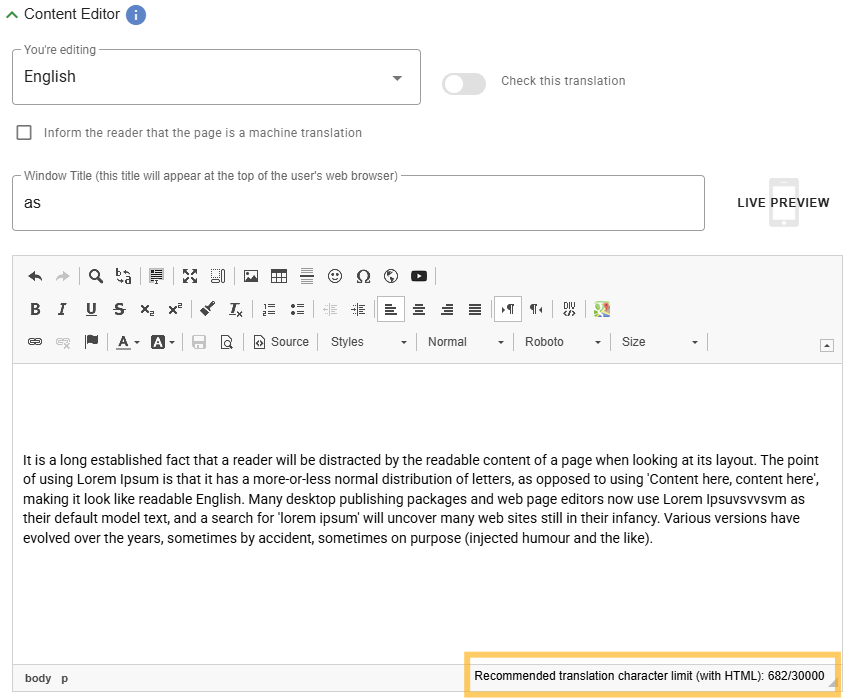
- If the number of characters exceed the recommended limit, shorten the content.
- Note that the character count includes markup (HTML).
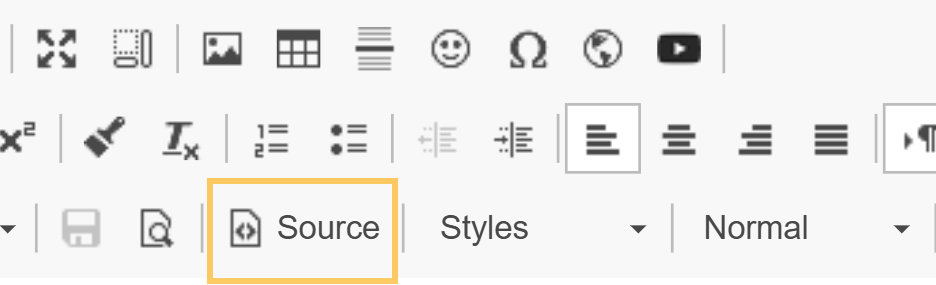
Markup is hidden by default. To view it, click Source in the editor toolbar.
- Try translating again.
If you continue to see this error even though the text is well within the recommended limit, please contact our support team.